Manual
The Steward user manual.
User manual
Nonprofit books: funds, gifts, grants, bills, and the statements that tie.
1. What Steward is for Index
Steward keeps the books for one nonprofit. If that nonprofit has more than one company, each company has its own chart, journal, and statements, and you can read them together. Money is tagged with a fund, so you can see whose money it is. A gift, a bill, and a journal entry all land in the same journal. The statements are read from that journal.
Steward is management accounting. It is not an audit, and it does not file Form 990 or payroll tax returns. Have a CPA review the statements before you file. The glossary at the end defines the words this manual uses.
2. Sign in and choose the organization Index
A new organization can start a 30-day trial. During sign-up the license opens. Type the same name that is on the sign-up form, choose that you agree, and finish. If the name does not match, Steward shows the name from the form. If you do not agree, you can go back and change the answer, or leave sign-up and return to the start. The person signing up confirms they are human, then opens the link in the confirmation email before the account is finished. Each later sign-in asks for that check again and for an eight-digit code emailed to the same address. Forgot password sends a reset link. The license can be read later under Administrative, End user license. Steward does not email a copy.
After you sign in you see the organizations you are allowed to open. Pick one. You are then in that organization’s books, and only those books. Closing the browser signs you out.
The primary admin of an organization invites the other people and picks a role: company admin, standard all access, in-house accountant, outside accountant, customers and vendors, accounts receivable, accounts payable, reports only, read only, or time only. The role decides which pages open and whether a change is saved. A company admin can invite people but cannot replace the primary admin. NPNumerix can open every client’s books. A person invited to one organization cannot see another organization’s books. The microphone on any page answers “what’s my role,” “what can I do,” “list the roles,” and “what can accounts receivable do.”
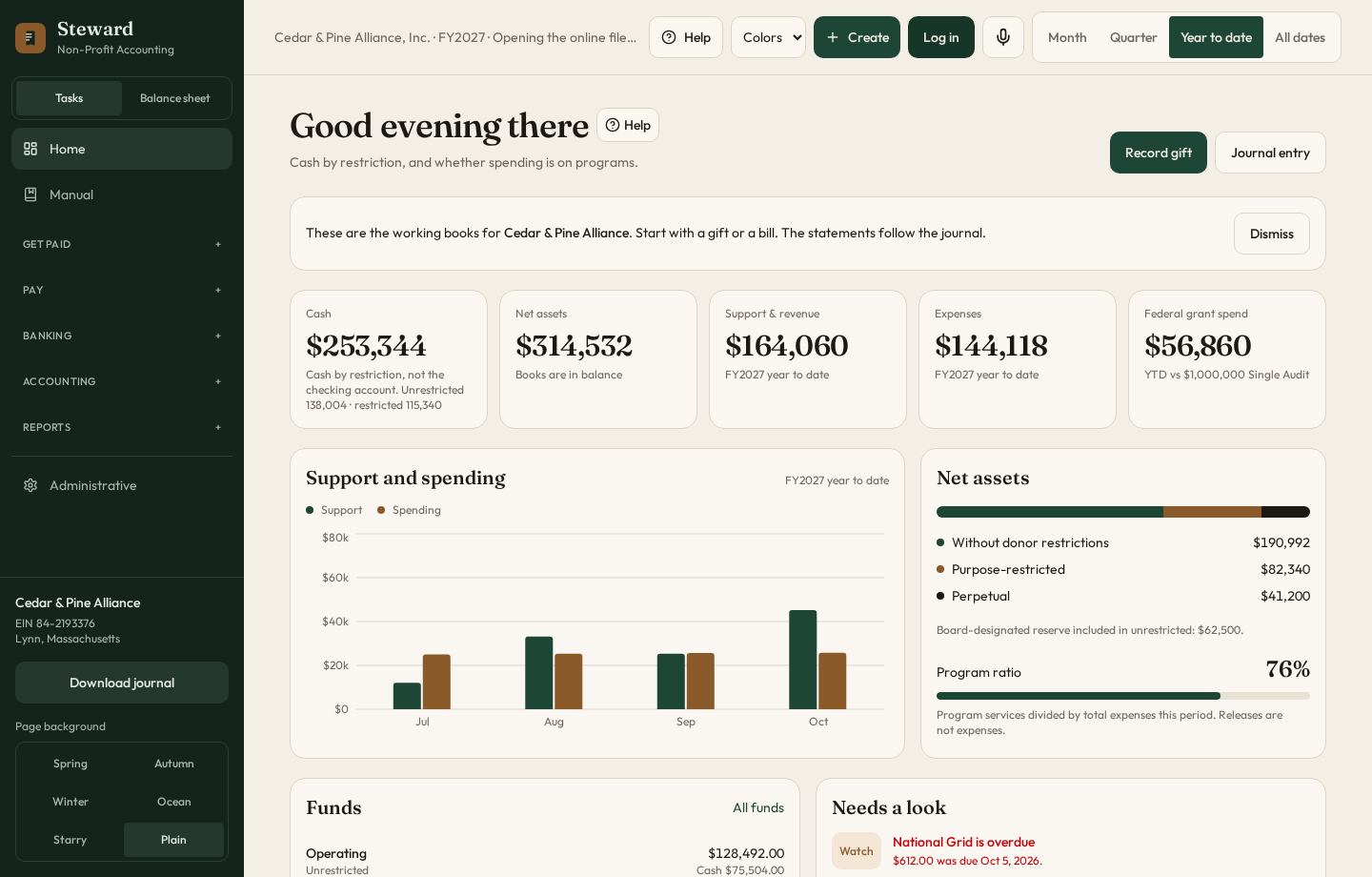
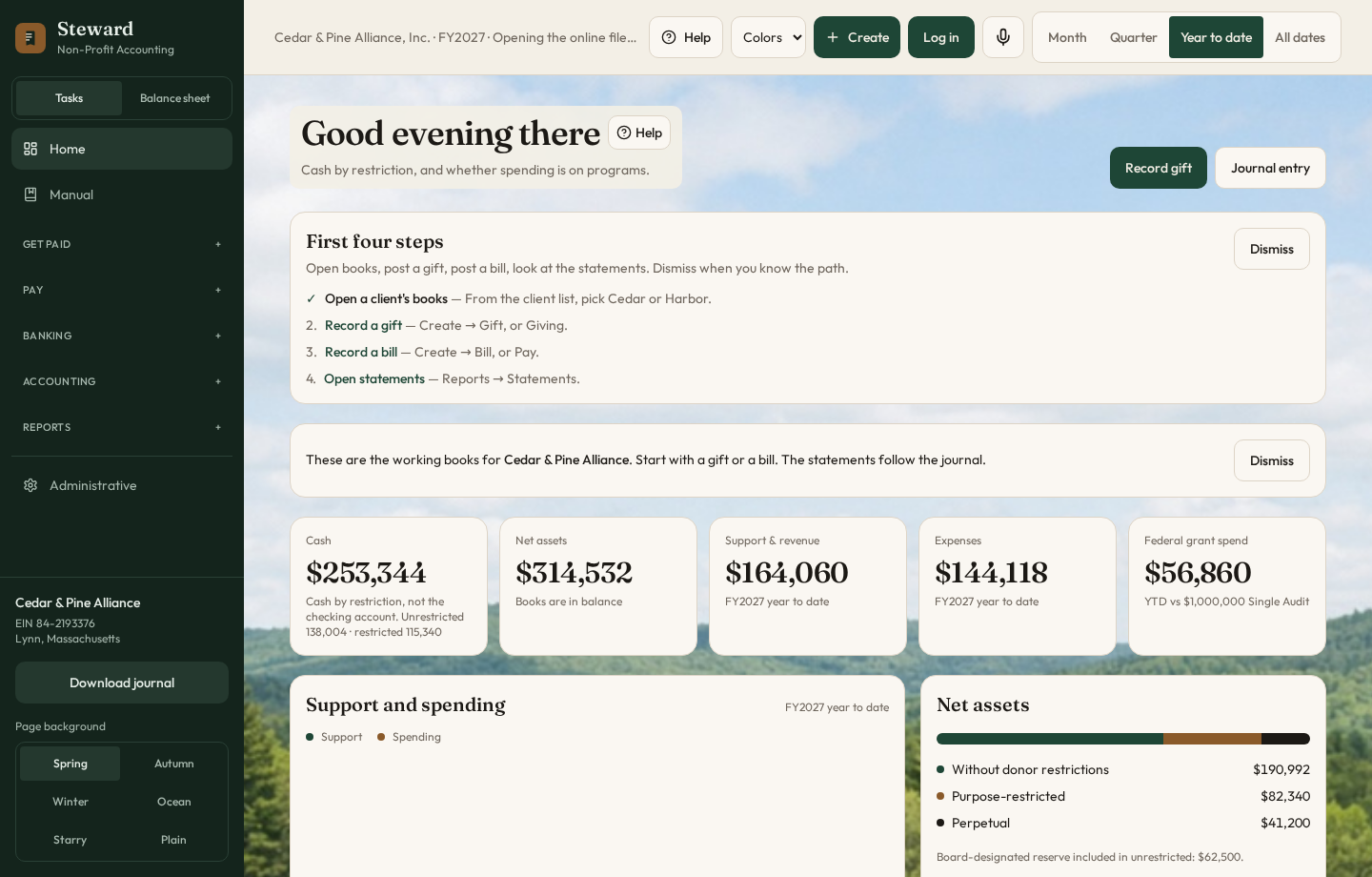
The greeting at the top uses your first name. The period control next to it is Month, Quarter, Year to date, or All dates. Change it when you want a different stretch of the books, not a different organization.
3. The screen Index
Menus
The side menu has two arrangements. You can switch between them at the top of the menu.
- Tasks groups the work in this order: Get paid, Pay, Banking, Accounting, Reports, Budget, then Taxes. Companies, departments, approvers, backups, import, and export sit under Administrative.
- Statements follows the statement of financial position: cash, receivables, prepaids, and equipment under Assets; bills, purchase orders, and notes under Liabilities; then net assets, support, and the books. Reports sits under Books and above Budget.
Open one group and the others close. The title you opened is highlighted and moves to the top of the menu, so the choices sit under it. Choosing a page inside that group keeps the title there. Click the title again to close the group.
Reports has two pages. Statements are the board reports. Working reports are the lists you use during the month. Download journal, at the bottom of Reports, saves the journal as a spreadsheet. It is not a statement.
Create
The Create button is for the things you post often: a gift, an invoice, a grant receipt, a bill, a purchase order, a journal entry, or the release of a restriction. It remembers the last vendor, fund, and account you used, so the next one starts there.
Appearance
Appearance, at the bottom of the side menu, is two lists. The left list is the picture behind every page: Spring, Autumn, Winter, Ocean, Island, Starry, or Plain. Plain has no picture. The license page stays plain. The right list is the color of the pages and the menu: Colors, Navy, Slate, Wine, Green, or Aqua. Spring also selects Green. Autumn selects Wine. Starry selects Navy. Ocean selects Slate. Island selects Aqua, the turquoise of shallow water. You can still change the color on its own. Both stay on this browser. A long page, including the five-year forecast, uses the same picture as Home.
Help
Every page title has a help button. It explains that page only, and the choices on it. Press ? or F1 to open it. Escape closes it. Changing pages closes it. The shortcut stays off while you are typing in a field.
Who is in
In the software, on the side menu, lists each company that has someone signed in, and the people. Your own name is marked you. Click another person’s name to open a text window. The note stays between the two of you. It is not a journal entry.
4. The first afternoon Index
Do this once, before the first real month. A short month, in order is the list for a month that is already running.
- Sign in and open the organization.
- Open Administrative, then Companies. Enter the legal name and the month the fiscal year starts. Add a second company only if that company keeps its own books. One bank account is not a second company.
- Add the funds you actually have. Start with the operating fund, without donor restrictions. Add a restricted fund only when a donor has limited the use. Add a board-designated fund only when the board has set money aside.
- On the chart, decide the account number. You can turn the company digits off, and you can turn the location digits off. Leave a part off if you will not use it. Add the checking account if it is not already there.
- Post one opening journal entry, dated the day before the first month you will keep. Debit cash and the other assets. Credit what you owe and the net assets. The entry has to balance. Every line needs a fund.
- Record one small gift to the operating fund. Open the statement of activities for that month and find the gift. If you can see it, the books are ready for the month.
5. Funds, departments, and account numbers Index
A fund is whose money it is. It is not a bank account and it is not a department.
| Kind | What it means |
|---|---|
| Without donor restrictions | The organization may spend it on the mission. |
| With donor restrictions | The donor limited the purpose or the time. Release it when the condition is met. |
| Board-designated | Still unrestricted. The board, not a donor, set the reserve aside and can change it. |
Every journal line needs a fund. Cash by fund is what you can spend. Fund balance is net assets. Open a fund to see its activity.
A department is different. It is a heading on the chart of accounts, usually on expenses. You do not post to a department. You post to the accounts under it, and the trial balance shows the department total. Add departments under Administrative.
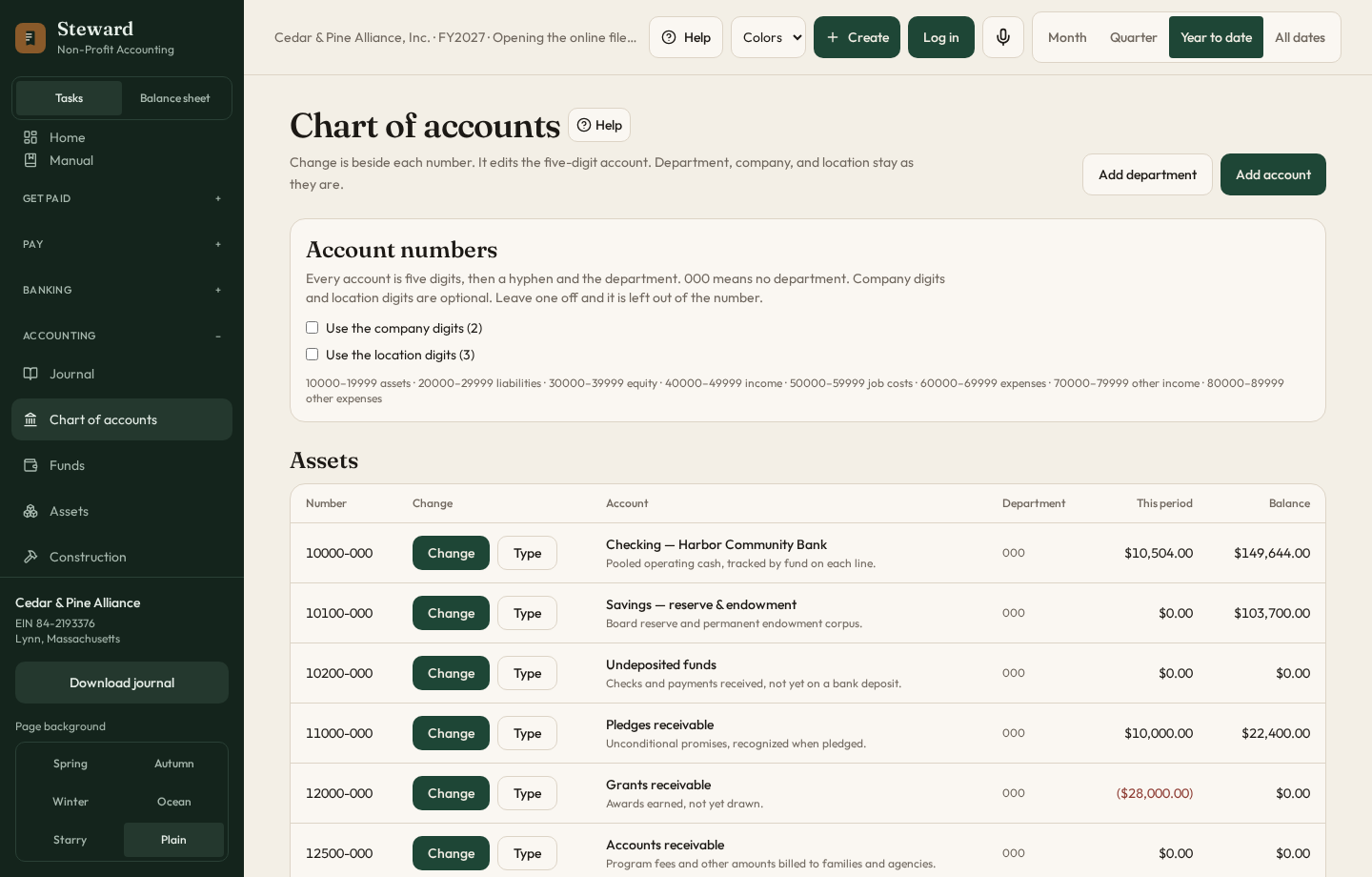
An account number can have four parts, separated by hyphens: a two-digit company, five digits for the account, three digits for the department, and three digits for the location. The five digits follow the usual ranges: 10000 assets, 20000 liabilities, 30000 net assets, 40000 support, 50000 cost of goods, 60000 expenses, 70000 other income, 80000 other expenses. On the chart you can turn the company digits off, and you can turn the location digits off. What you turn off is left out of the number. You can edit an existing number, and you can change an account’s type, for example from an expense to a liability. Companies, including the legal name and the fiscal-year start, are entered under Administrative.
The company list at the top of the screen, next to the period, chooses whose books you are reading. The organization’s own name is the first set. Each company you add under Administrative, then Companies, has its own chart, its own journal, and its own statements. Assign an account to a company on the chart. A new entry is filed with the company selected at the top. Consolidated adds every company. An account with “intercompany” in the name, or marked intercompany, is left out of the consolidated statements. If those accounts do not net to zero, the statement says so. The steps for an amount one company paid for another are under Journal, Between companies.
6. Get paid Index
Giving
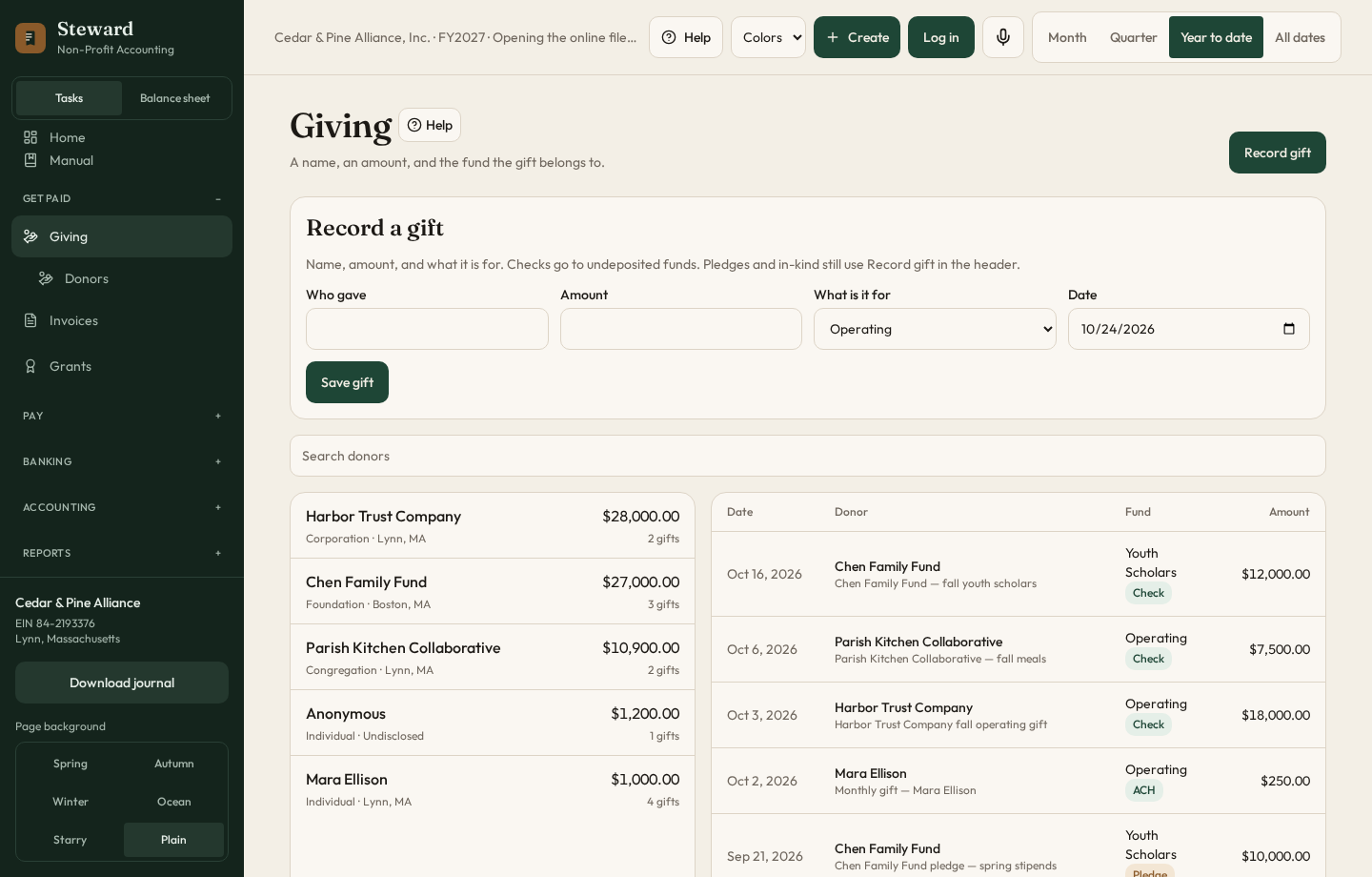
- Choose Create, then Gift, or open Giving.
- Enter the donor, the amount, and the fund. The fund is whose gift it is.
- A simple gift needs only the name, the amount, and the fund.
- Save it. A posted gift is in the journal and on Giving activity.
Use a pledge when the donor has promised the gift and the cash has not arrived. Use in-kind when the gift is goods rather than money.
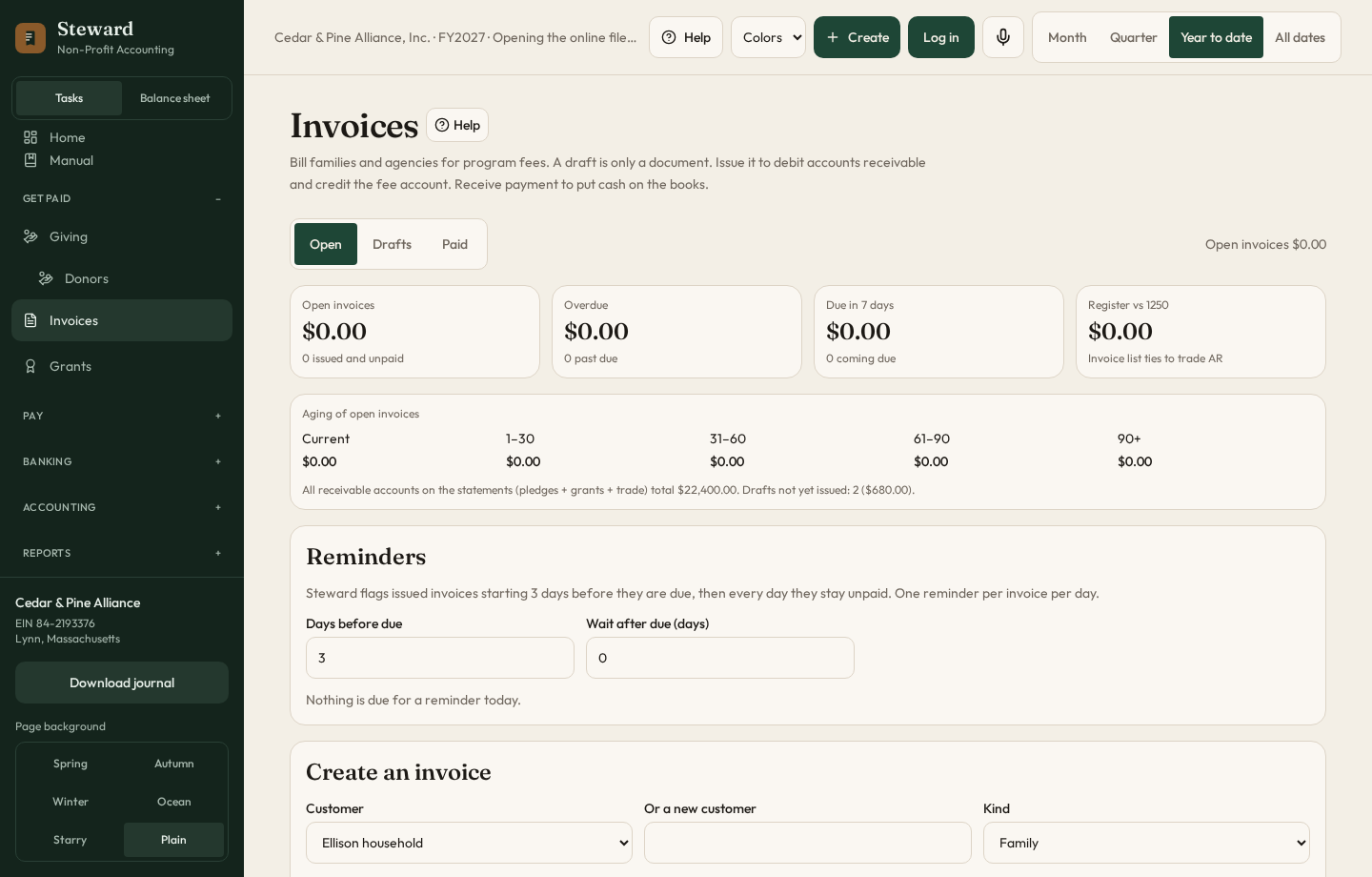
Invoices
- Create a draft. A draft is not on the books.
- Issue the invoice. That records the receivable.
- When the family or the agency pays, receive the payment into undeposited funds or checking.
- If several checks are sitting in undeposited funds, deposit them together on Reconcile, step 1.
Donors, under Giving, holds the name, the contact, and this year’s gifts. It is the same idea as the vendor list.
On a restricted gift, open Activity log. Write the date, what the gift was used for, and an amount if you have one. The log is a record of the use. It does not post a journal entry. A grant has the same log.
The accounts receivable schedule, under Accounts receivable in the statement menu, lists open invoices by customer and age. Working reports prints a customer statement of what is still open. The schedule total should tie to the receivable account.
Credit memos and write-offs
Both are for an invoice that has already been issued and is still open. The date is the payment date on that page.
- Enter the credit amount, then choose Credit memo. Steward debits the income account on the invoice and credits accounts receivable. A partial credit leaves the rest open. A credit that clears the invoice, with no cash received, marks it credited.
- Write off clears whatever is still open. Steward debits an expense and credits accounts receivable. The invoice leaves the open list.
Estimates, repeating invoices, and inventory
These sit at the top of Invoices. None of them hit the journal until an invoice is issued.
- Estimate. Save the customer, the description, and the amount. Make invoice turns it into a draft. Issue that draft when the customer accepts it.
- Monthly invoice. Make it monthly. Period close posts it on the next date and issues it, so the receivable is on the books.
- Billable costs. On an open bill, choose the customer. Then Invoice billable costs. Steward drafts an invoice for those costs and does not bill them a second time.
- Inventory. The full register is on Inventory, under Pay. Add the item with an asset account, a cost account, and an income account. Receive posts the cost to the asset and increases the quantity. The cost on hand is the average. Use posts that average cost to the expense and lowers the quantity. Count sets the quantity to what you counted and posts the difference. Selling the item on an issued invoice does the same relief. A draft invoice does not.
Reminders are listed for invoices that are due or overdue. Steward does not send the reminder. You do.
Grants
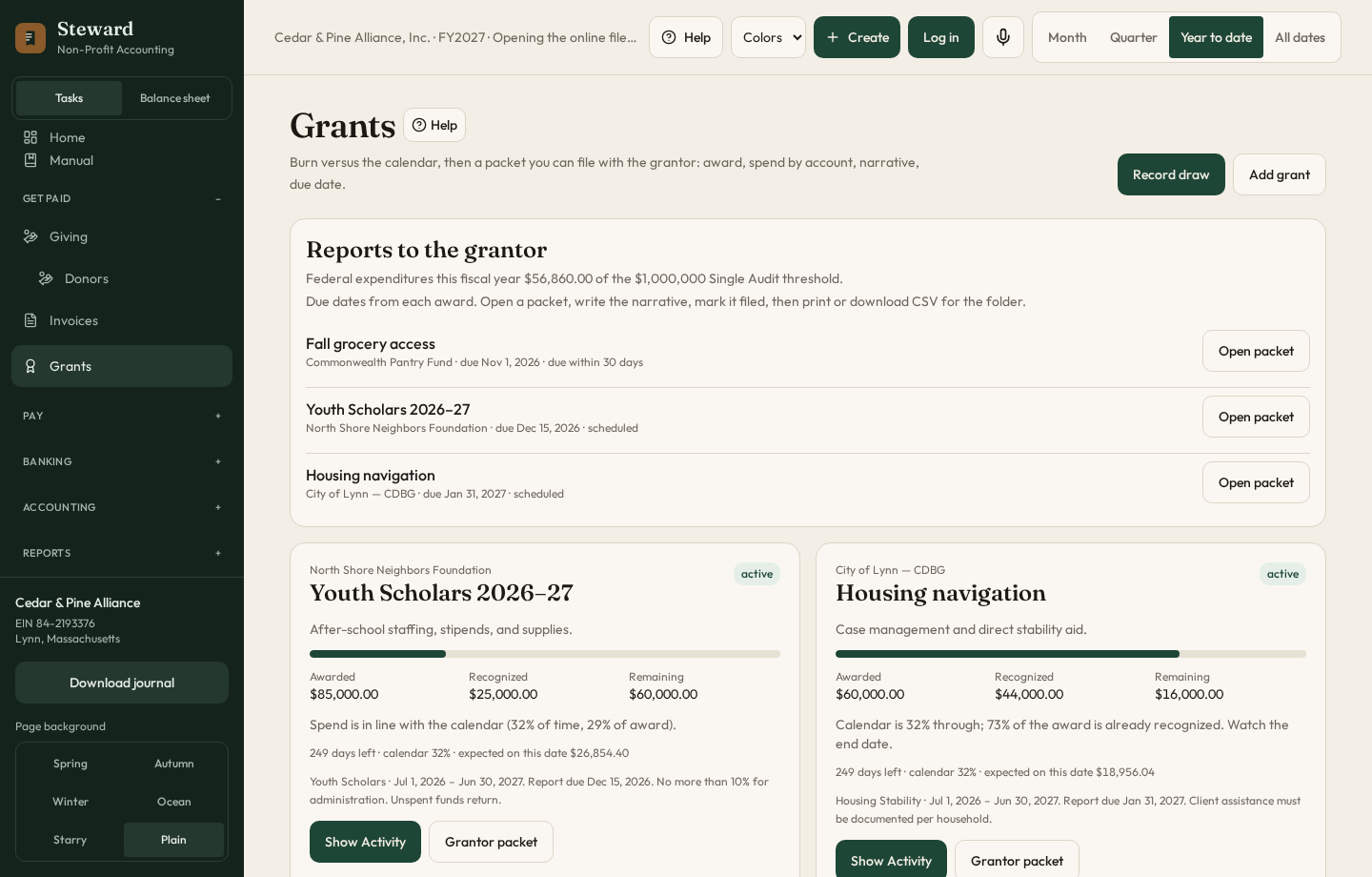
- Add the award: the funder, the fund, the budget, and the restrictions.
- Record a draw when cash arrives.
- Open Show activity on a grant to see what has been spent against it. Activity log is the written note of how the award was used. The note does not post.
- Reports to the grantor drafts a packet. Edit the narrative, then mark it filed when you send it.
Spending on a grant is still a bill or a journal entry. The grant page shows that spending. It does not replace the bill.
7. Pay Index
Vendors
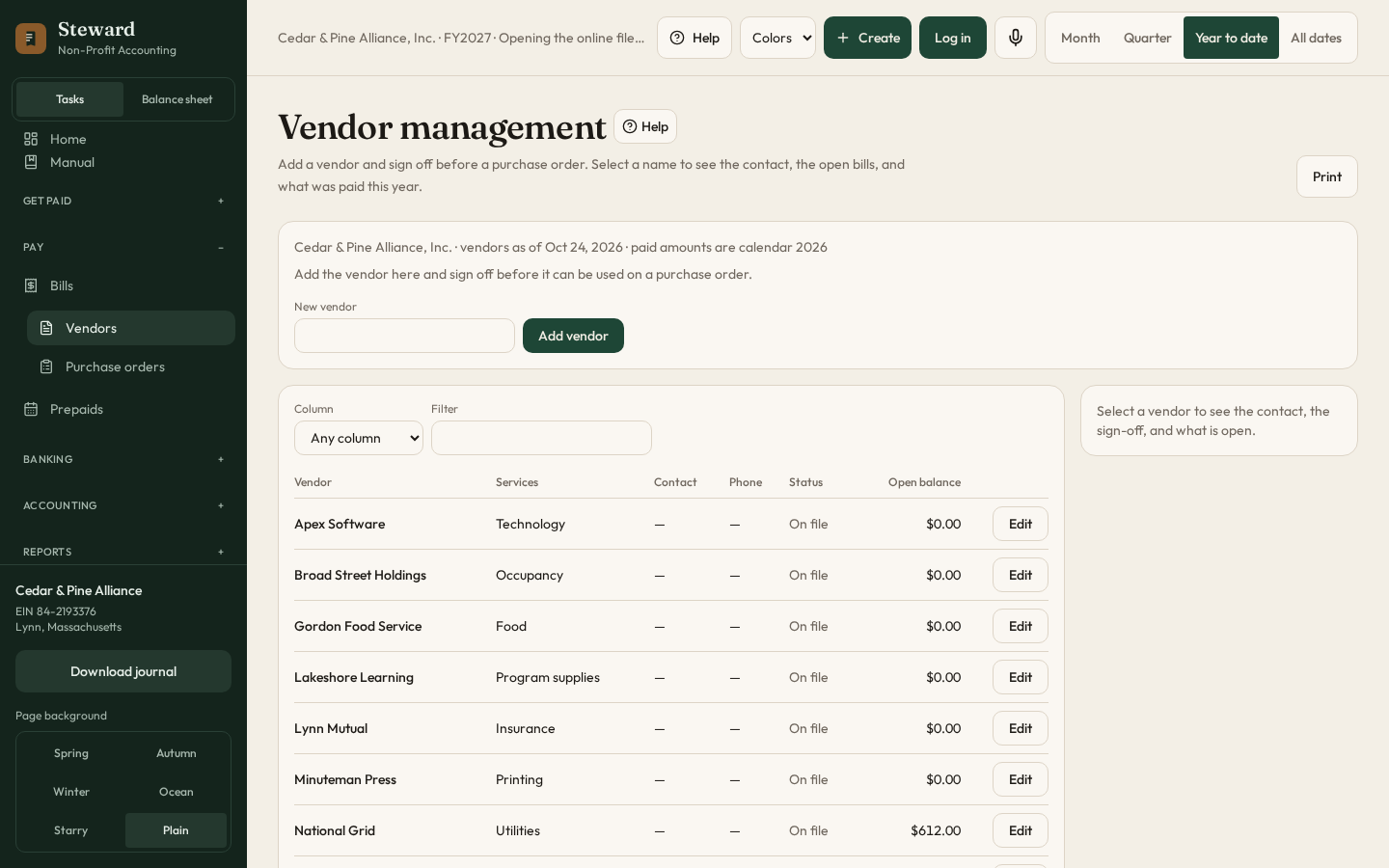
A vendor has to be on the vendor list, and signed off, before a purchase order can use that name. You cannot type a new vendor on the order.
- Open Vendors, under Bills.
- Type the name and choose Add vendor. The row is marked Waiting.
- Select the name. The record on the right holds the contact, phone, address, city, state, ZIP, start date, terms, and taxpayer identification number.
- On the left table, Edit changes the name, the services, the contact, and the phone. Save closes the fields, even if some of them are blank.
- Sign off by choosing the approver and the date. The list is the people on this client whose user type was checked under Approvers. The status becomes Approved, and the name can be chosen on a purchase order.
Vendors already on the list before this rule stay available. A vendor you add now waits for the sign-off.
Approvers
Approvers is under Pay, then Admin, and also under Administrative. A company administrator checks which user types may sign off on a new vendor, and which may approve a purchase order, then saves. The vendor form and the purchase order then list the people on this client who have one of those types. Until someone saves a choice, the lists use Primary admin, Company admin, and Accounts payable.
Filter the list by choosing a column and typing. Any column searches the name, status, balances, contact, phone, address, city, state, ZIP, services, and the rest of the record.
If the same vendor was entered twice, open one of them and merge it into the name you want to keep. Bills and purchase orders move to the name you keep.
Purchase orders
A purchase order is a promise. It is not an expense.
- Choose the vendor from the vendors already on the books. A name that is still waiting for a sign-off is not listed. Choose the fund, the date needed, and the lines. A box that still needs an answer is marked.
- Choose the approver from the people whose user type was checked for purchase orders. Save and send for approval. Steward emails that person.
- The approver opens the order and chooses Approve or Reject. Steward emails that decision back.
- Record the receipt when the goods arrive.
- Bill what was received, or bill the whole order. The bill posts the expense. The order does not.
Bills
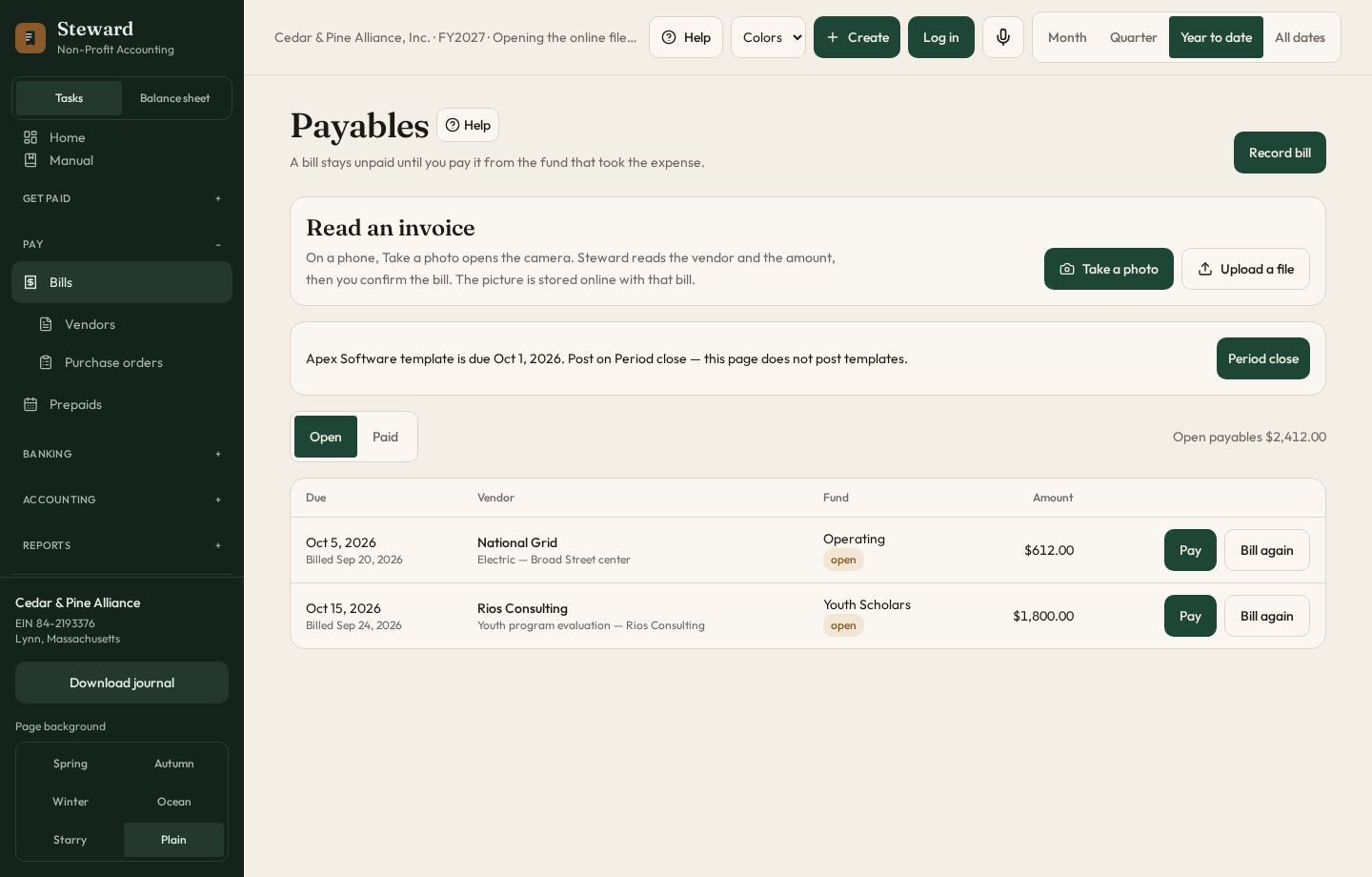
- Record the bill, or photograph it. On a phone, Take a photo opens the camera. Steward reads the vendor and the amount. You confirm the bill before it is saved. The picture stays with the bill.
- The fund on the bill is whose money is being spent. It is not the bank account.
- Pay the open bill from that fund.
- Credit reduces what is still owed. Enter the amount when asked. Steward debits accounts payable and credits the expense on the bill. It is not a cash payment.
- If the customer should be charged for the cost, choose that customer on the bill. The invoice is created from Invoices, not from the bill.
A monthly bill that repeats is posted from Period close, not from the bill list. On the bill itself, Make this bill monthly does the same thing: next month, Period close posts it.
When the bill was scanned, you can check Use this entry for future scanned invoices that say, and type words that appear on that kind of invoice, such as electricity. The next scan that contains those words fills in the same debit and credit. You still confirm the amount before it is saved.
Check email, on the bill page, reads invoices sent to the organization’s invoice address and loads the ones that are not already saved. Opening the page checks as well. An invoice already on the books is not shown again.
Invoice limits
Limits, under Pay, then Admin, is a dollar amount. An invoice at or above that amount cannot be paid until a company administrator approves it. Leave the amount blank if every invoice can be paid. Only a company administrator can change the limit.
Checks
Checks, under Pay, writes a check and can print it on the company’s blank checks. A check posts when you save it. Printing only puts the numbers on the paper.
- Enter the date, the bank account, who the check is payable to, the fund, and the amount. A vendor is optional.
- Choose an open bill, or leave the bill blank and choose the expense account. Paying a bill debits accounts payable and credits the bank, for the amount still open. A check with no bill debits the expense and credits the bank.
- Leave Print later on if the number should wait for the printer. Turn it off only when you already have the number, and type that number. A number already used, and not voided, is rejected.
- Click Save check. Enter in the last field does the same thing. The date has to be after the books are closed.
Under Print checks, tick the checks that are waiting, enter the number on the first blank check in the printer, and click Print selected. Steward numbers them in date order and skips numbers already used. Each page prints the check and a stub that is not negotiable. The stub lists the check number, date, payee, amount, memo, bank, account, and fund. If the printer keeps trying to connect, Steward stops after three tries. The numbers stay assigned.
New check stock is only for a new order of checks. Choose Voucher if the check is on top, or Three-part if the check is in the middle. Click Scan a blank check and choose a photo of one unused check. Steward reads DATE, the amount box, and the check number, and prints those numbers there until the next order. Print a sample and hold it over a blank check. Shift across and Shift down move the printing in inches. Use 0.1 for a small move. A negative number moves the other way. Nothing on the sample is numbered.
Void, on a check that has been saved, reverses the payment. If the check paid a bill, the bill is open again. A void uses the check’s original date, so a closed period blocks it.
Check requests
Check requests, under Checks, is how an employee asks accounts payable to write a check. It is not the check, and it does not post to the journal.
- Enter the payee, the date needed, and the fund.
- Fill in up to eight lines. Each line is a purpose, an account number, and an amount. The total is calculated.
- Upload a photo or a PDF of each receipt. At least one receipt is required.
- Save the request. Steward emails every user whose role is Accounts payable.
Prepaids
A prepaid is a cost paid before it is used, such as insurance. The register is the detail inside the prepaid account.
- Add the prepaid and its schedule. You can take two months up front and then equal monthly installments for the rest of the year.
- Post a payment when cash leaves.
- The month’s amortization is posted from Period close.
The prepaid report shows the year-to-date activity for each vendor.
8. Banking Index
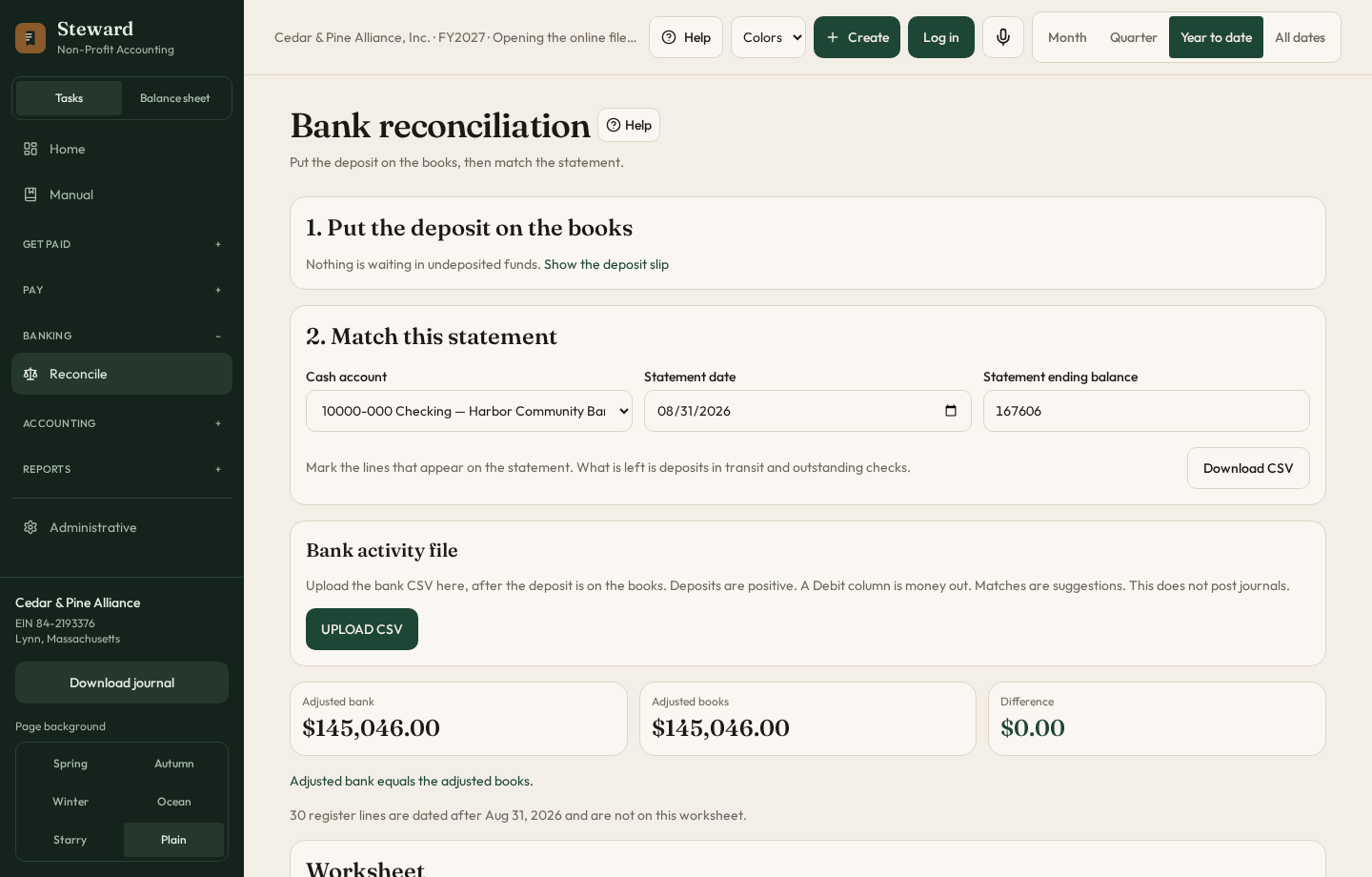
Reconcile has two steps.
- Undeposited funds. Checks that have been received but not taken to the bank sit here. Build one deposit and put them on the bank account.
- The statement. Enter the statement date and the ending balance. Upload the bank’s CSV with Upload CSV. Steward suggests matches. Clear matched only ticks the register. It does not post a journal entry. Interest and charges stay off the books until you add them and post them.
A line in the file with no matching register amount can be coded. Choose the expense or the income account and click Code. Steward posts it, marks it cleared, and remembers the description. The next file that uses those words offers the same account.
When the difference is zero, Finish and keep stores that statement. The kept list stays after you change the date and start the next month. The live worksheet is only the statement you are working on.
A CSV downloaded from the bank is the source document. A photograph of the statement is not used for the match. When the worksheet is saved, Working reports can print it: the bank balance, deposits still in transit, outstanding checks, the book balance, and the difference.
Statements & Activity, under Banking, is where a statement file is read and saved, the same way a bill can be photographed. Choose the bank account, upload the file or take a photo, and save it. A saved statement appears on Reconcile. Use applies that statement to the worksheet. Delete removes it.
9. Accounting Index
Journal
Every posted gift, bill, check, and adjustment is here. The date on the entry is when it belongs in the books. Posted by and the time are who saved it and when. Each entry has a journal number. Steward keeps the last number and adds one for the next entry. The number is on the entry after you click Create entry. Importing another year adds to the journal. It does not replace the year already there.
- Create entry, on the Journal page, uses one amount. The debit and the credit are that same amount. A program on an unrestricted fund is allowed. Enter moves to the next field. The button stays at the bottom of the form.
- A manual entry from Create must balance, and every line needs a fund.
- Filter the lines by date or by the type of transaction. The search also finds a journal number.
- For wages, download the payroll template. It lists the salary accounts. Fill in hours, rate, and wages, then upload it. Steward posts the journal entry. It does not calculate payroll tax or file a return.
Between companies
Use this when one company paid and another company owes it. Add the second company under Administrative, then Companies, before you start. Between companies is at the top of the journal after that.
- Open the Journal and click Record under Between companies.
- Enter the date and the amount.
- Company that paid is the one that laid out the money. Company that owes is the one that has to pay it back.
- Paid from is what left the paying company, usually its cash. Owing company records is what that company books, usually the expense.
- Choose the fund. Add a short note if you want one.
- Click Post to both journals.
Steward writes two entries. The paying company is debited Due from the other company and credited for what left. The owing company is debited for the expense or the cash it received and credited Due to the company that paid. The first time, those two accounts are added to the chart. Each entry stays in that company’s journal. Choose Consolidated at the top of the screen and both accounts drop out. If they are the same amount, they net to zero, and the combined statements keep the cash that left and the expense that remains.
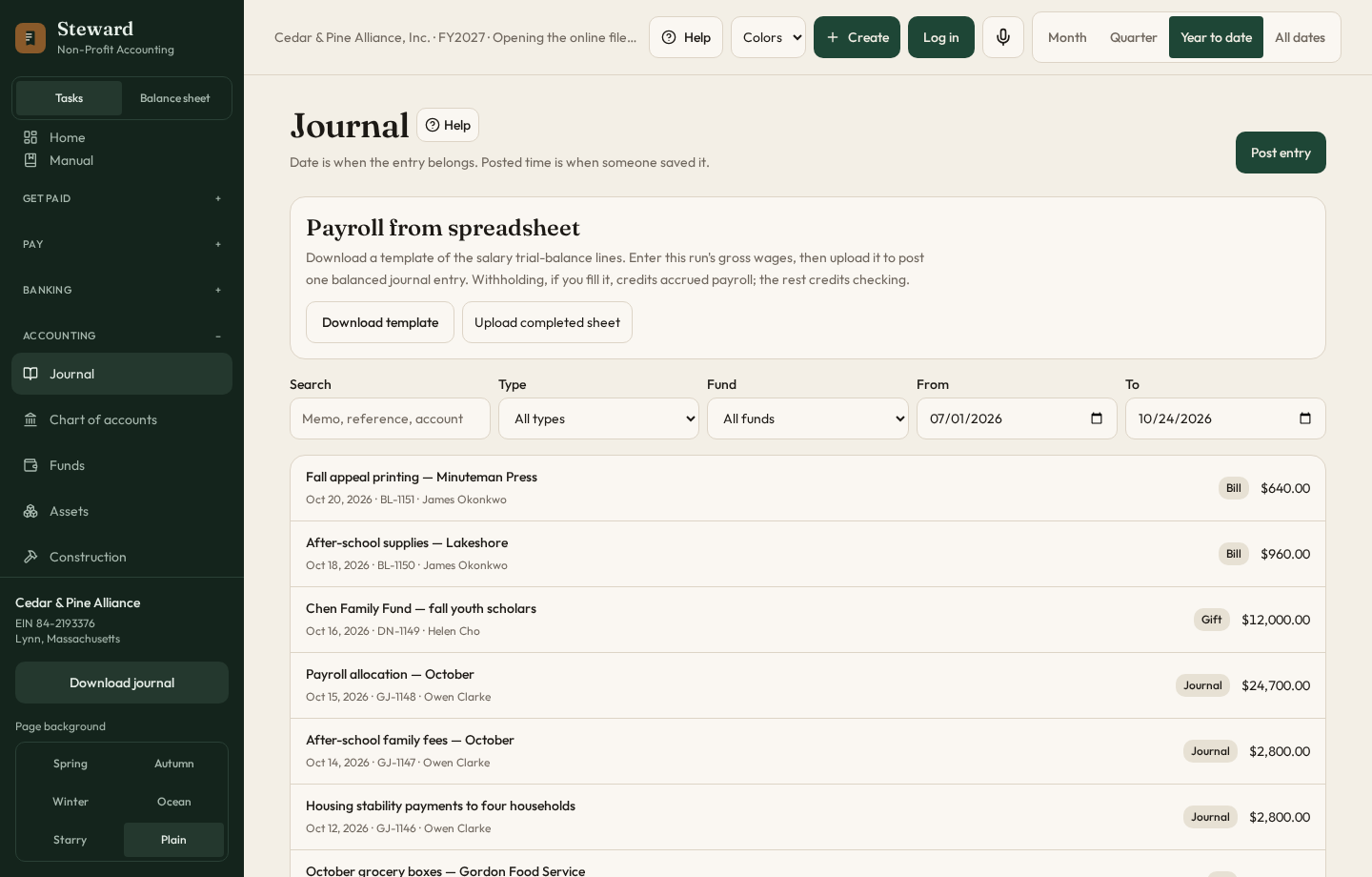
Chart of accounts
Add a department on the part of the chart it belongs to, usually expenses. Add accounts under that department, or point an existing account at the department. The department is a heading. The books post to the account underneath. To change a type, open the account and choose the new type. The number can be edited on the same row.
Fixed assets
- Add the asset with its class, cost, life, method, and depreciation expense account. Methods are straight line, 200% declining balance, and 150% declining balance. The purchase date and the date placed in service can differ. Mid-month is the usual rule: a date on the 1st through the 15th counts that month, and the 16th or later starts the next month. Full month counts the in-service month either way. The page shows both on a $12,000 van.
- Post the purchase from the register, or start from a fixed-asset purchase already in the journal. Cost stays on the asset account. Depreciation credits accumulated depreciation. If that depreciation is already on the books, enter it. It is not posted again.
- Save a draft to read the month-by-month schedule and change the method before depreciation starts.
- Several assets can be added at once, using the same class, method, and accounts.
- Dispose of an asset when it is sold or scrapped. Enter the selling price and any selling fee. That posts the gain or loss.
- Depreciation that is due posts from this page or from Period close, through the last finished month. Later months stay on the schedule.
- If the class you need is not listed, add a class. Standard classes are in the list. Choose Other to type one.
Debt
Each note keeps its own rate, term, and amortization table. Add the note and check the split between interest and principal. Post the next payment when cash leaves. Marking a note retired records that it is done. It does not by itself write a journal entry.
Construction
Construction tracks a project’s budget and what has been spent. It does not replace the bills.
10. Month-end and the statements Index
Period close
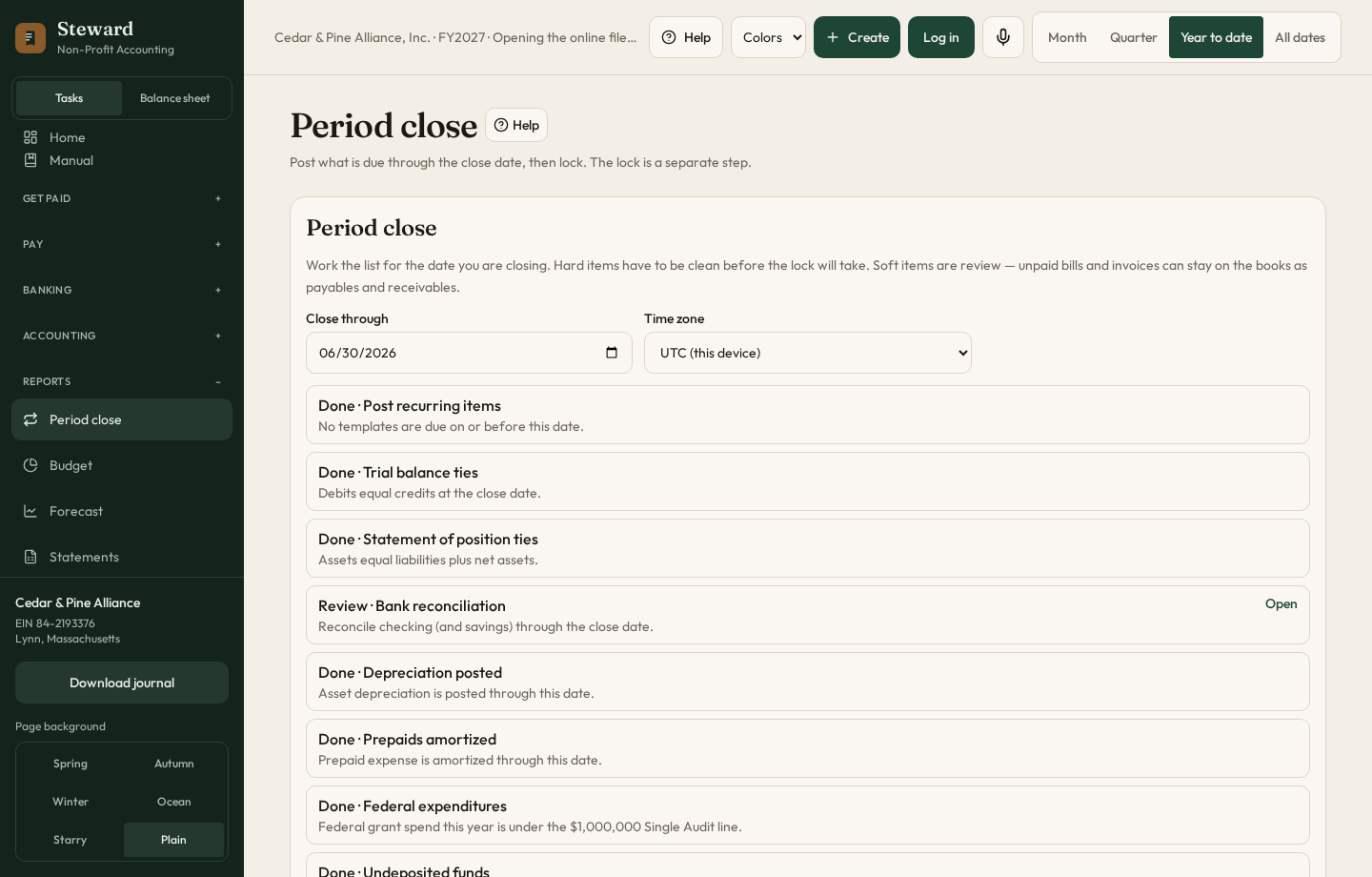
Posting and locking are separate.
- Read the checklist. Hard items must be clean before the lock will take.
- Post everything due. That posts recurring journals, recurring bills, recurring invoices, prepaid amortization, and depreciation. A recurring invoice is issued, so the receivable is on the books. This step does not lock the period.
- A repeating journal, such as recognizing prepaid insurance, is a template on this page. Add a template, debit the expense, and credit the prepaid. One time posts on the date and then stops. Monthly, quarterly, and yearly keep going until you pause them. Post everything due is what writes the entry.
- Read the trial balance. The debits and credits must total to zero.
- Set the lock only after the trial balance and the statement of financial position still tie. Entries dated on or before the lock date cannot be changed.
Budget
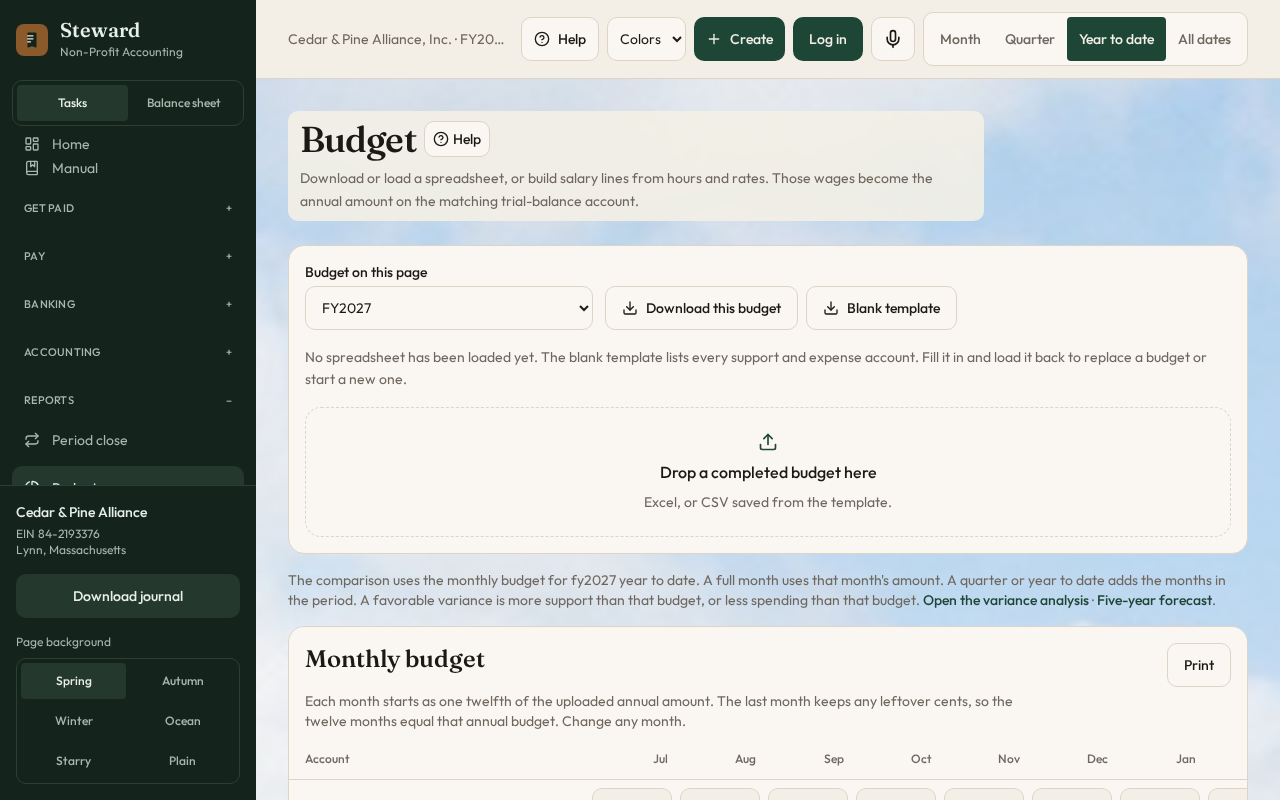
- Download a template. It can be blank, based on the last budget, or an existing budget.
- Fill it in and upload it to create a budget or replace one.
- On a salary account, add lines for hours and rates. Expand a line to see the detail, and collapse it to hide the detail. The lines total into that account on the budget.
- Mark one budget active. The comparisons use that budget.
An uploaded annual amount is split into twelve months. The last month keeps any leftover cents, so the twelve months still equal the annual figure. Change any month in the monthly budget. Print prints only that table, in landscape.
The annual budget under Support and revenue, and under Expenses, is not an entry box. It is the total of those twelve months. Change a month to change the annual total. Actual-to-budget comparisons use the monthly amounts for the period selected at the top: one month, the months in a quarter, or the months in the year to date. A month that is only partly in the period uses that share of the month.
Forecast
The 13-week view uses open invoices, open bills, and debt payments. Print, on Thirteen-week cash, prints that schedule only, not the five-year forecast under it. The five-year forecast starts from the active budget and the rates you set, and it includes a forecasted statement of financial position and a forecasted statement of cash flows. Nothing on this page posts to the journal.
Statements
Read one statement at a time: financial position, activities, functional expenses, cash flows, budget variance, or the trial balance. Fund, Class, and Location sit above the statement and narrow every one of them. Class is the department on the account. Location is the location on the account. Leave a choice on All to ignore it. The company list at the top is separate: one company, or Consolidated.
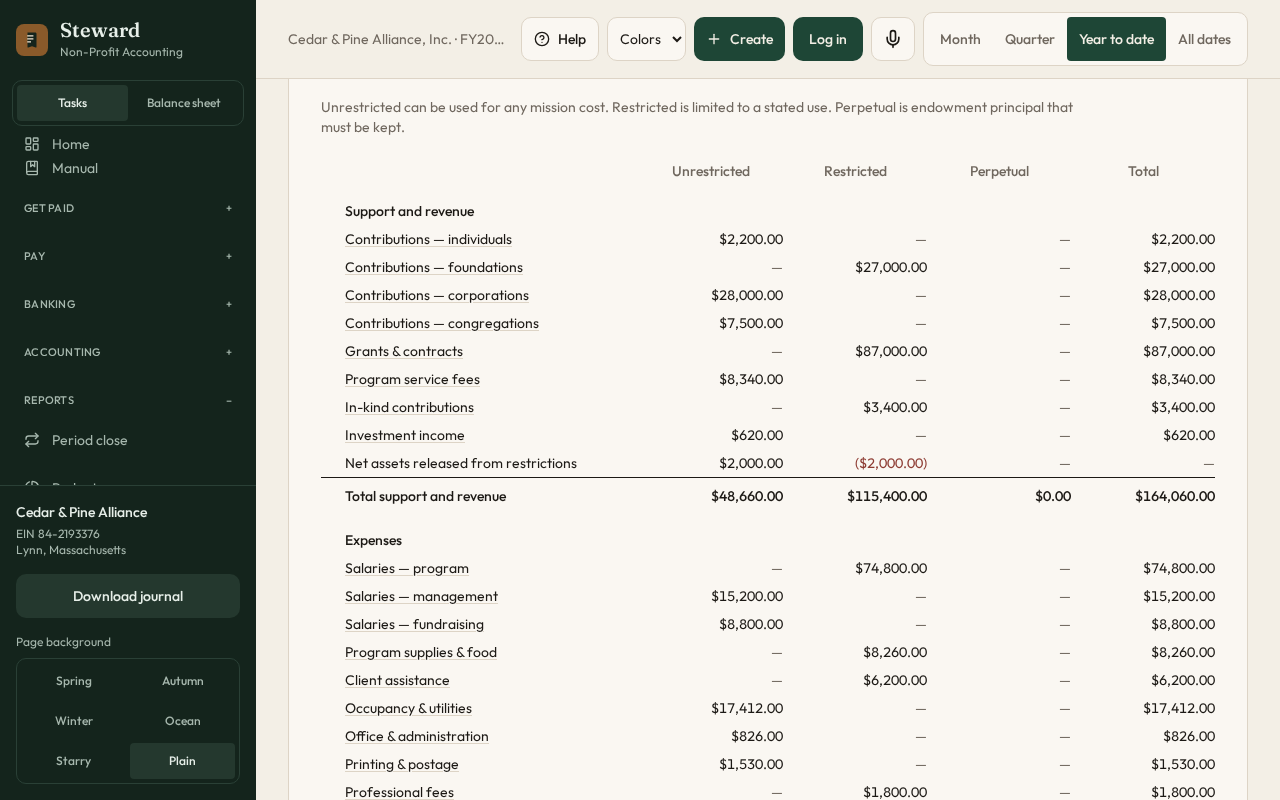
- The statement of activities has four amount columns: Unrestricted, Restricted, Perpetual, and Total. The column follows the fund on the journal line. You do not pick the column on the statement.
- Unrestricted can be used for any mission cost. Restricted is limited to a stated use. Perpetual is endowment principal that must be kept.
- For a single period, choose Month, Quarter, or Year to date, and the ending date. The budget for that period comes from the monthly budget, and the variance is line by line.
- For several periods, choose the number of months, quarters, or years.
- The trial balance shows a total. Debits minus credits must be zero.
- Click an account name on activities, financial position, or the trial balance to open that account in the general ledger.
- Write the variance explanation on the statement. The choices for what counts as a material variance sit under the statement. Cash flow has its own narrative.
- Print when the numbers look right. Each statement prints on its own page. You can also download a CSV or build a board packet.
- Email sends the statement you are looking at as a spreadsheet, or the board packet as a PDF. It goes out from invites@npnumerix.com. The mailbox password is the one saved on the Clients page.
Working reports
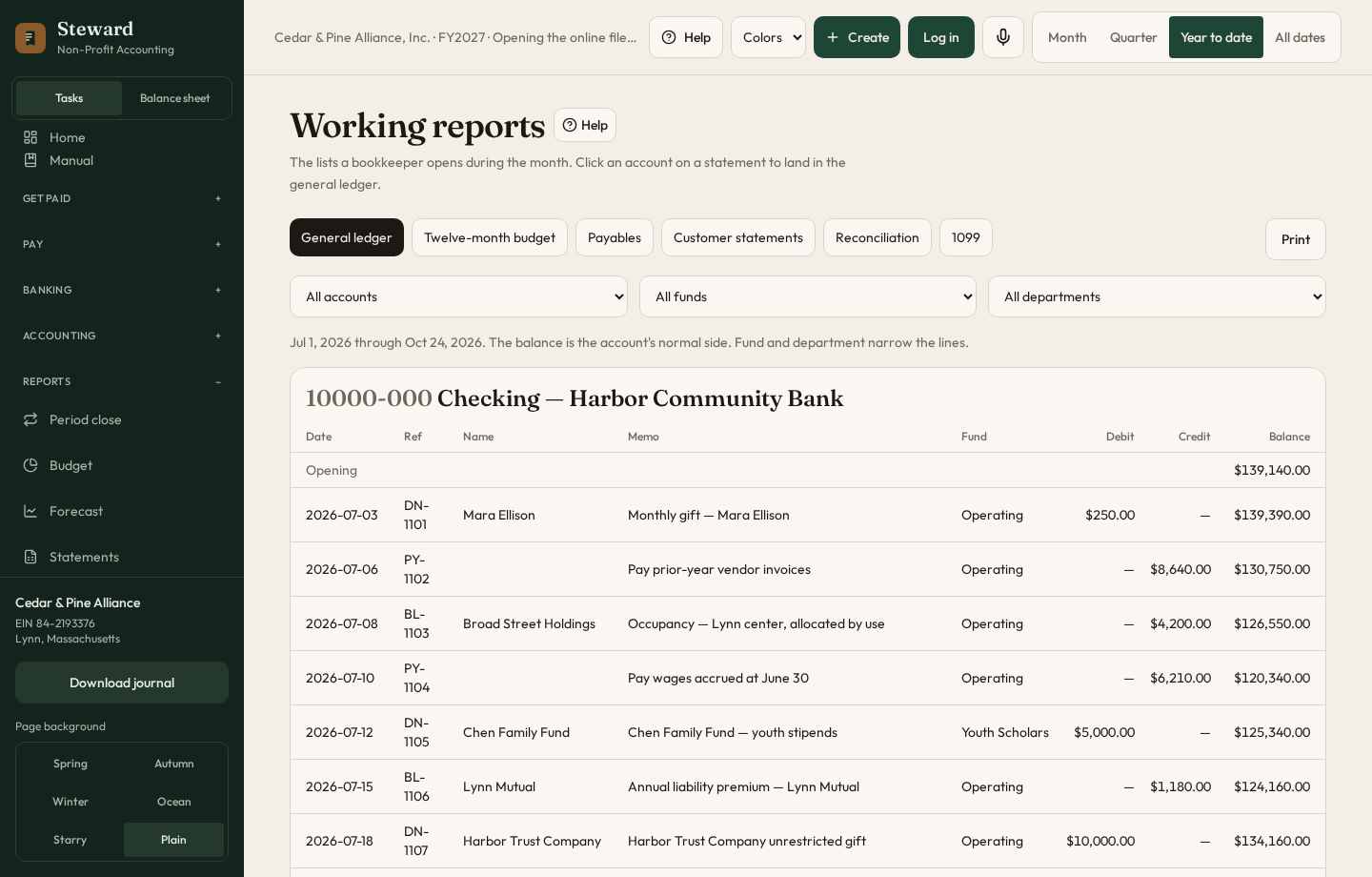
Open Working reports under Reports. These are the lists used during the month, not the board statements. The same Fund, Class, and Location choices sit at the top and apply to the lists below. The bank reconciliation list is not narrowed that way, so the cash account stays on it.
- General ledger. Every journal line in the period, with a running balance on the account’s normal side. Filter by account, fund, class, or location.
- Twelve-month budget. Each fiscal month shows the actual, with that month’s budget under it, and the variance for the year.
- Payables. Unpaid bills aged current, 1–30, 31–60, 61–90, and over 90, plus the bills in the period totaled by vendor.
- Customer statements. Open invoices for each customer, and the amount still due. Print if you are sending the statement.
- Reconciliation. The saved bank worksheet, including what is still outstanding and whether it ties. Finish and keep, on the bank page, stores a statement after the next month starts.
- 1099. Vendors marked for a 1099, what was paid this calendar year, and whether they reached $600. This is a list for the preparer. Steward does not file the form.
Saved report, under those choices, keeps the fund, class, and location you have selected. The report is the general ledger. Name it, and enter an email address if it should go out every month. Steward sends it the next time someone opens the books on or after that date. It does not send while the site is closed. Email now, on the statement you are looking at, still sends that statement immediately.
11. Leaving QuickBooks, or leaving Steward Index
Import
This is for a QuickBooks chart and journal, or for a spreadsheet in that same shape. Export the chart and the journal from QuickBooks as Excel, CSV, or IIF. A file with Journal Date, Journal No., Account Name, Debits, and Credits is read as a journal. Review the preview, then post. Adding to the current books keeps earlier years. Replace deletes the journal already here. Classes become funds. A profit-and-loss export is skipped on purpose, because Steward posts the journal, not a report.
Export
Download a Steward backup if you want to load these books again. Download a QuickBooks-style file or a workbook if the organization is leaving. The file downloads to your computer. Steward does not send it anywhere.
Backups and client activity
Each night the books are saved as a file named with the client and that date. Six nights are kept for each client. The next night drops the oldest file. If nobody opens the books, the file is still written about 3:00 in the morning Eastern.
Backups, under Administrative, is the folder of those files. The firm administrator can click Take a copy now. Download saves the file to your computer. Restore puts that night’s books back. Steward asks first. Work done after that night is cleared.
A Steward backup from Export is a file you keep yourself. It is separate from the nightly folder.
Client activity, also under Administrative, is only for NPNumerix. It lists what happened in each client’s books. Every line has the time it was recorded, the person, the client, the journal date when there is one, and the debit or credit. An organization does not see this report.
Users, on the same menu, is the list of accounts. It shows the name, the email, when they signed up, when they were last seen, whether the email was confirmed, and which books they can open. Invitations that have not been accepted are listed under that. An organization does not see this page.
12. Follow one gift Index
This is one gift, followed until it shows on the statements. The amounts are an example. Use your own.
- A donor gives $1,000 for the summer program, and nothing else. Record the gift. The fund is the restricted fund for that program, not the operating fund. Hold the check in undeposited funds.
- On Reconcile, deposit that check into checking. The cash moves. The fund does not change.
- A $400 bill arrives for program supplies. Record the bill against the same restricted fund, then pay it from that fund.
- Open the statement of activities for that month. The $1,000 is in the Restricted column. The $400 expense is in that column too. The column came from the fund. You do not pick it on the statement.
- Open the fund. Cash by fund shows $600 still in that fund. The operating fund was not used.
- Click the income account. The general ledger shows the gift as one line. Fund, Class, and Location at the top can narrow that list. Leave them on All if you want every line.
If the $1,000 appears under Unrestricted, the fund on the gift is wrong. Fix the gift. Do not try to move the column on the statement.
13. A short month, in order Index
- Record gifts, invoices, grant draws, and bills for the month.
- Deposit undeposited checks, then reconcile the bank with the CSV. Code anything the file has that the journal does not. Finish and keep when the difference is zero.
- Post depreciation, prepaid amortization, and anything that repeats, from Period close.
- Read the trial balance and confirm it totals to zero.
- Read the statement of financial position and the statement of activities. The budget columns use the monthly budget.
- Open Working reports if you need the general ledger, the twelve-month budget, unpaid bills, or a customer statement.
- Write the explanations. Print or build the board packet.
- Lock the period when you are finished with it.
14. When the number looks wrong Index
Look here before you post a correcting entry. Most of these are a fund, a date, or a line that never had a match.
| What you see | What to check |
|---|---|
| The trial balance is not zero | An entry does not balance, or an imported line is missing its other side. Open the journal for that date. Debits and credits on one entry have to match. |
| A bill will not pay | That fund does not have enough checking cash. Cash in another fund does not pay it. Look at cash by fund. |
| The bank difference is not zero | A register line is still outstanding, or the bank file has a charge that was never posted. Code that line, or clear the match. Finish and keep stays off until the difference is zero. |
| Consolidated does not net to zero | Due from one company and Due to the other are not the same amount. Read both journals, or post the pair from Between companies. |
| An amount is in Unrestricted and you expected Restricted | The fund on the journal line is unrestricted. The statement does not have its own column choice. Correct the fund on the entry. |
| A second journal file did not replace the first year | Import adds a year. It does not erase the year already there. Choose replace only when you mean to clear the journal. |
| The budget column will not accept typing | That column is the total of the twelve months. Change the month on the monthly budget. The statement follows it. |
| A report is missing an account | Fund, Class, or Location is not on All. Class is the department. An account with no location disappears when a location is selected. |
15. Glossary
The words below are the ones Steward uses. They are not a full accounting textbook.
| Word | What Steward means |
|---|---|
| Accounts payable | What the organization still owes vendors for bills that have been recorded and not yet paid or credited. |
| Accounts receivable | What customers still owe on invoices that have been issued and not yet paid, credited, or written off. |
| Approver | A person whose user type was checked under Approvers. That person can sign off on a new vendor or approve a purchase order, depending on which list includes the type. |
| Activities | The statement of support and revenue, expenses, and the change in net assets. The column follows the fund on the journal line. |
| Bill | A vendor’s charge that has been recorded. It posts the expense and the payable. A purchase order does not. |
| Billable cost | A bill marked with a customer so it can be put on an invoice. The expense stays on the books. The invoice records the amount to collect. |
| Budget | The plan for the year, split into twelve months. Comparisons use the months inside the period you selected, not a typed annual number. |
| Chart of accounts | The list of accounts the journal can post to. A department is a heading. The books post to the account under it. |
| Check | A payment drawn on a bank account. Saving it posts the journal entry. Printing puts the date, the amount, and the check number on the company’s blank check and on a stub. |
| Check request | An employee’s ask for accounts payable to write a check, with the purpose, the account, the amount, and the receipts. Saving it notifies accounts payable. It is not a journal entry. |
| Class | The department on an account. On a report, Class keeps only the accounts in that department. |
| Company | One set of books inside the organization: its own chart, journal, and statements. The organization’s own name is the first set. |
| Consolidated | Every company’s books read together. Intercompany accounts are left out so the same amount is not counted twice. |
| Credit | The right side of a journal line. On a liability, equity, or revenue account it increases the balance. On an asset or expense it decreases it. |
| Credit memo | A reduction of an open invoice, with no cash received. It reduces income and accounts receivable. |
| Debit | The left side of a journal line. On an asset or expense it increases the balance. On a liability, equity, or revenue account it decreases it. |
| Department | A heading on the chart, usually under expenses. Steward also calls it a class when you filter a report. |
| Depreciation | The month’s share of a fixed asset’s cost. It is posted from Period close, not when you add the asset. |
| Draft | An invoice or a purchase order that is not on the journal yet. Issue an invoice to record the receivable. Bill a purchase order to record the expense. |
| Due from / Due to | The two sides of an amount one company paid for another. Due from is the receivable. Due to is the payable. Both drop out of the consolidated statements. |
| Estimate | A price given to a customer. It is not on the journal until you turn it into an invoice and issue it. |
| Financial position | The statement of what the organization has, what it owes, and the net assets, as of the date you chose. |
| Fiscal year | The organization’s year, which may not start in January. The budget months and Year to date follow the fiscal year start on the organization record. |
| Fund | Whose money a line belongs to. It is not a bank account and it is not a department. Every journal line needs one. |
| Functional expense | An expense tagged as program, management, or fundraising. The functional statement groups expenses that way. |
| General ledger | The journal lines for an account, with a running balance on that account’s normal side. |
| Grant | An award from a funder, with a budget and restrictions. Recording a draw posts the cash. Spending is still a bill or a journal entry. |
| Intercompany | An account that only exists because two of the organization’s companies owe each other. It is left out when you read Consolidated. |
| Inventory | Goods on hand. Receiving them posts the cost to an asset. Issuing an invoice that sells them posts the income and the cost, and reduces the quantity. |
| Invoice | A bill you send to a customer. A draft is not on the books. Issuing it records accounts receivable and income. |
| Journal | The list of entries the statements are built from. Gifts, bills, checks, invoices, and manual entries all land here. Each entry has the next journal number. |
| Location | The place on an account. On a report, Location keeps only the accounts assigned to that place. |
| Lock date | The last day of a closed period. Entries dated on or before it cannot be changed. Posting the month does not set the lock. |
| Net assets | What remains after what the organization owes is taken from what it has. Fund balance is the same idea, by fund. |
| Period | The stretch of dates at the top of the screen: a month, a quarter, the year to date, or all dates. Reports follow it. |
| Period close | The page that posts what repeats, including recurring invoices, and that can lock the month after the statements tie. |
| Perpetual | Endowment principal that must be kept. On the statement of activities it is its own column, from the fund on the journal line. |
| Prepaid | A cost paid before it is used, such as insurance. The cash leaves when you pay. The expense is recognized as the schedule is posted. |
| Purchase order | A promise to a vendor. It is not an expense until you bill what was received. |
| Reconciliation | The worksheet that ties the bank statement to the register. Finish and keep stores a finished statement after you start the next month. |
| Release | Moving a gift or a grant from with donor restrictions to without restrictions, once the donor’s condition is met. |
| Restricted | Money the donor limited to a purpose or a time. On the statement of activities it is the Restricted column. |
| Trial balance | Every account, with its debit or credit balance. The totals must be equal, so debits minus credits are zero. |
| Undeposited funds | Checks and other receipts that are in the books but not yet taken to the bank. Deposit them on Reconcile before they appear in checking. |
| Unrestricted | Money the organization may use for the mission. On the statement of activities it is the Unrestricted column. |
| Variance | Actual minus the budget for the same period. The monthly budget supplies the budget figure. The explanation is written on the statement. |
| Vendor credit | A reduction of an open bill, with no cash paid. It reduces accounts payable and the expense on that bill. |
| Write-off | Closing an open invoice you will not collect. It records an expense and removes the receivable. |
| Year to date | From the first day of the fiscal year through the date you chose. |
Three rules that prevent most mistakes. The fund is whose money it is. A purchase order and a draft invoice are not yet on the books. Posting from Period close is not the same as locking the month.